
This tutorial will discuss about the HSDPA modem in Linux. In the new kernel, for some type of modem (such as Huawei, ZTE. Since kernel 2.6.26) can operate in linux. So you do not need to do additional setting again, usually a modem will be detected as "/ dev/ttyUSB0", "dev/ttyUSB1" and so on depending on the modem. You can dial directly using the "GNOME-PPP or the other. How to dial you can see here and replace the dial before the "Phone number" with "* 99 #".
For those who do not prosper, can try other ways to use the "usb_modeswitch" in http://www.draisberghof.de/usb_modeswitch/ website.
To use the ZTE MF622 modem and Internet service from IM2, you can see here (by: Dony Ramansyah) or the ways that this is my copy :P.
1.First plug to usb in PC or Notebook then this Modem ZTE will be recognized as usb storage, for that us beforehand must make in order to modem this ZTE MF622 are recognized as [the] modem 3G. This Download packet from : http://www.draisberghof.de/usb_modeswitch/usb_modeswitch-0.9.5.tar.bz2
2.Extract file is referred [as] by order of :
$ tar -jxvf usb_modeswitch-0.9.5.tar.bz2
$ ls
usb_modeswitch-0.9.5.tar.bz2
$ tar -xvjf usb_modeswitch-0.9.5.tar.bz2
usb_modeswitch-0.9.5/
usb_modeswitch-0.9.5/compile.sh
usb_modeswitch-0.9.5/usb_modeswitch
usb_modeswitch-0.9.5/usb_modeswitch.conf
usb_modeswitch-0.9.5/usb_modeswitch.c
usb_modeswitch-0.9.5/usb_modeswitch.h
usb_modeswitch-0.9.5/COPYING
usb_modeswitch-0.9.5/README
$ ls
usb_modeswitch-0.9.5 usb_modeswitch-0.9.5.tar.bz2
$ cd usb_modeswitch-0.9.5/
~/usb_modeswitch-0.9.5$ ls
compile.sh
README
usb_modeswitch.c
usb_modeswitch.h
COPYING
usb_modeswitch
usb_modeswitch.conf
3.Login as root
$ su or
$ sudo su
4.Copy file executable "usb_modeswitch" at directory "/sbin" and "/usr/sbin"
~/usb_modeswitch-0.9.5# cp usb_modeswitch /sbin/usb_modeswitch
~/usb_modeswitch-0.9.5# cp usb_modeswitch /usr/sbin/usb_modeswitch
Attention for debian linux bases like Ubuntu, etc, default [in] /usr/sbin/. Nevertheless for Redhat bases like fedora, opensuse [in] /sbin.
5.Copy file "usb_modeswitch.conf" to directory "/etc"
~/usb_modeswitch-0.9.5# cp usb_modeswitch.conf /etc/usb_modeswitch.conf
6.Create file rules in /etc/udev/rules.d/15-zte-mf620.rules that comprising :
#--------------------------------------------------
ACTION!="add", GOTO="ZTE_End"
# Is this the ZeroCD device?
SUBSYSTEM=="usb", SYSFS{idProduct}=="2000",
SYSFS{idVendor}=="19d2", GOTO="ZTE_ZeroCD"
# Is this the actual modem?
SUBSYSTEM=="usb", SYSFS{idProduct}=="0001",
SYSFS{idVendor}=="19d2", GOTO="ZTE_Modem"
LABLE="ZTE_ZeroCD"
# This is the ZeroCD part of the card, remove
# the usb_storage kernel module so
# it does note get treated like a storage device
#RUN+="/sbin/rmmod usb_storage"
RUN+="/usr/sbin/usb_modeswitch d 1 v 0x19d2 p 0x2000 V 0x19d2 P 0x0001"
LABLE="ZTE_Modem"
# This is the Modem part of the card, let's
# load usbserial with the correct vendor
# and product ID's so we get our serial usb devices
RUN+="/sbin/modprobe usbserial vendor=0x19d2 product=0x0001",
# Make users belonging to the dialout group
# able to use the serial usb devices.
MODE="660", GROUP="dialout"
LABLE="ZTE_End"
#-------------------- eof ---------------
Ascertain permision its file equal to other rule.
# chmod 644 15-zte-mf622.ruleses
And pointing RUN+ at script above in accordance with distro weared :
RUN+="/usr/sbin/usb_modeswitch d 1 v 0x19d2 p 0x2000 V 0x19d2 P 0x0001" ==>> Attention for bases Linux debian like Ubuntu, etc, default [in] /usr/sbin/. Nevertheless for bases Redhat like fedora, opensuse [in] /sbin/.
7.Certainly you already install wvdial in Linux, (in Debian or Ubuntu remain install by apt-get or Synaptic).
# apt-get install wvdial
8.Create script in /etc/wvdial.conf like this :
[Dialer Defaults]
Modem = /dev/ttyUSB0
Baud = 3600000
Init1 = ATZ
Init2 = ATQ0 V1 E1 S0=0 &C1 &D2
Init3 = AT+CGDCONT=1,"IP","indosatm2"
Area Code =
Phone = *99#
Username =
Password =
Ask Password = 0
Dial Command = ATDT
Stupid Mode = 1
Compuserve = 0
Force Address =
Idle Seconds = 0
DialMessage1 =
DialMessage2 =
ISDN = 0
Auto DNS = 1
9.Restart your Linux now
10. After restarted try plug stick modem ZTE MF622 at slot existing USB, await till indicator chromatic led green (await 30 second) because this need time for modem recognition ZTE it self.
11.Running wvdial s :
# wvdial
WvDial<*1>: WvDial: Internet dialer version 1.56
WvModem<*1>: Serial Cannot get information for port.
WvDial<*1>: Initializing modem.
WvDial<*1>: Missionary: ATZ
WvDial Modem<*1>: ATZ
WvDial Modem<*1>: O.K.
WvDial<*1>: Missionary: ATQ0 V1 E1 S0=0 &C1 &D2
WvDial Modem<*1>: ATQ0 V1 E1 S0=0 &C1 &D2
WvDial Modem<*1>: O.K.
WvDial<*1>: Missionary: AT+CGDCONT=1,"IP","indosatm2"
WvDial Modem<*1>: AT+CGDCONT=1,"IP","indosatm2"
WvDial Modem<*1>: O.K.
WvDial<*1>: Modem initialized.
WvDial<*1>: Missionary: ATDT*99#
WvDial<*1>: Waiting for carrier.
WvDial Modem<*1>: ATDT*99#
WvDial Modem<*1>: CONNECT
WvDial<*1>: Carrier detected. Starting PPP immediately.
WvDial: Starting pppd at Mon Feb 11 01:06:45 2008
WvDial: Pid of pppd: 14291
WvDial<*1>: pppd: H?
WvDial<*1>: Using interface ppp0
WvDial<*1>: pppd: H?
WvDial<*1>: pppd: H?
WvDial<*1>: pppd: H?
WvDial<*1>: pppd: H?
WvDial<*1>: pppd: H?
WvDial<*1>: pppd: H?
WvDial<*1>: pppd: H?
WvDial<*1>: local address IP 124.81.144.28
WvDial<*1>: pppd: H?
WvDial<*1>: remote address IP 10.64.64.64
WvDial<*1>: pppd: H?
WvDial<*1>: primary DNS address 202.155.0.10
WvDial<*1>: pppd: H?
WvDial<*1>: secondary DNS address 202.155.0.15
WvDial<*1>: pppd: H?
If display like above mean us have been connected with 3G HSDPA and have got IP and also DNS. we remain try ping to www.yahoo.com to ensure that us have browsing.
10. Weel, have the internet of cheerful with service 3,5G HSDPA IndosatM2 :)
Showing posts with label Tutorial. Show all posts
Showing posts with label Tutorial. Show all posts
Sunday, January 25, 2009
Sunday, January 18, 2009
Using mobile phone as Modem With USB On Debian GNU / Linux.
Hopefully this tutorial can help newbie looking for ways that confuse the mobile phone as a modem in the "Linux" especially Debian. On this tutorial I use "GNOME PPP" and Sony Ericsson as an example. To use this tool is actually quite easy because it already use the "GUI".
First is the need to check whether the phone is connected to the computer, using the command "dmesg" in terminal. Usually my phone will be detected by the system as "ttyACM0" and "ttyACM1".
* Username: gprs
* Password: IM3
* Phone number: * 99 *** 1 #
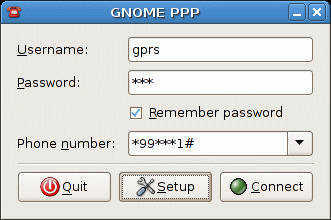 Click "Connect", if you already have the network icon in the "Notification Area" means that you are connected to the internet. :D.
First is the need to check whether the phone is connected to the computer, using the command "dmesg" in terminal. Usually my phone will be detected by the system as "ttyACM0" and "ttyACM1".


* Username: gprs
* Password: IM3
* Phone number: * 99 *** 1 #
 Click "Connect", if you already have the network icon in the "Notification Area" means that you are connected to the internet. :D.
Subscribe to:
Posts (Atom)


